CRM integrations
Connect your CRM so documents are filled from its records and attached back to them: who can set it up, field mapping, automation rules, the log and what happens to your data.
What it does
A CRM integration links DocuTract to the CRM where your deals, contacts and companies live. You decide once which field of a CRM record fills which field of a template. After that a document is created from a record in one click, or automatically when something happens in the CRM, and the finished file is attached back to the same record. Where a CRM does not accept files, a link to the document is left on the record instead.
What is available now
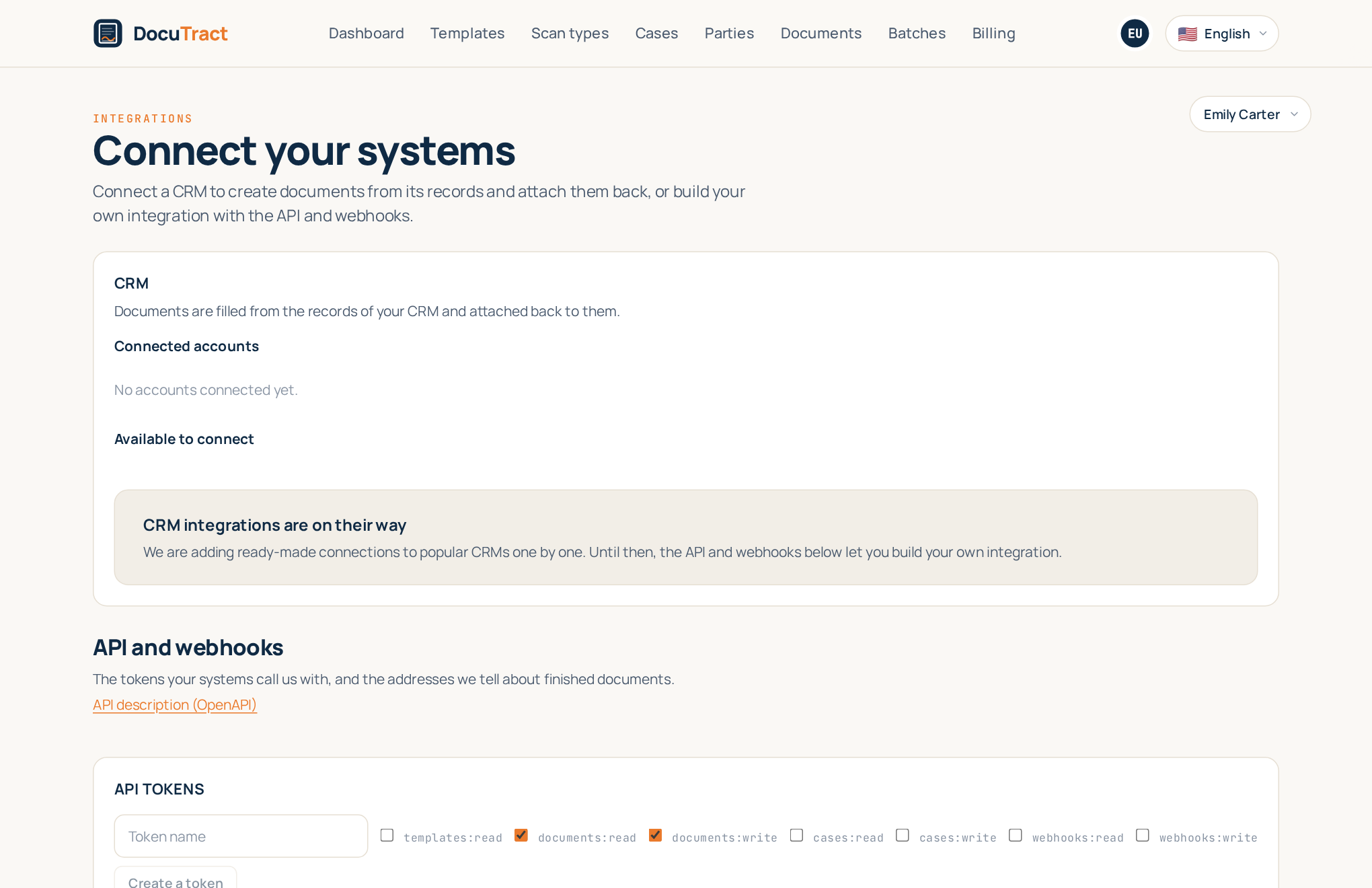
We are adding ready-made connections to CRMs one at a time, each tested against the vendor's own documentation. Until the first one is live, the integrations screen shows CRM integrations are on their way instead of buttons that would not work, and each CRM appears there as soon as it is ready. If your system is not listed yet, you can connect it yourself with the API and webhooks, directly or through Zapier, Make or n8n.
Who can set it up
Open the menu with your address in the top right corner and choose Integrations. The CRM section comes first; the API and webhooks are below it.
- Only the owners and admins of a workspace connect and disconnect accounts, map fields and add automation rules. Other members see the connected accounts and the log.
- CRM integrations are part of the Pro and Team plans; the API, webhooks and the no-code apps (Zapier, Make, n8n) need Team. On another plan the screen offers See plans instead of connecting.
Connecting an account
Under Available to connect, press Connect beside your CRM. The line under its name says how it connects:
- Sign in through the CRM: you go to the CRM's own sign-in page, choose the account, approve the access DocuTract asks for and come back to the integrations screen. We never see your CRM password.
- With an API key: paste the key you created in the CRM's settings into API key. We check it with the CRM before saving it, and store it encrypted.
If the CRM keeps data in several regions, choose yours in Data region first. The account then appears under Connected accounts, and Open leads to its settings.
Field mapping
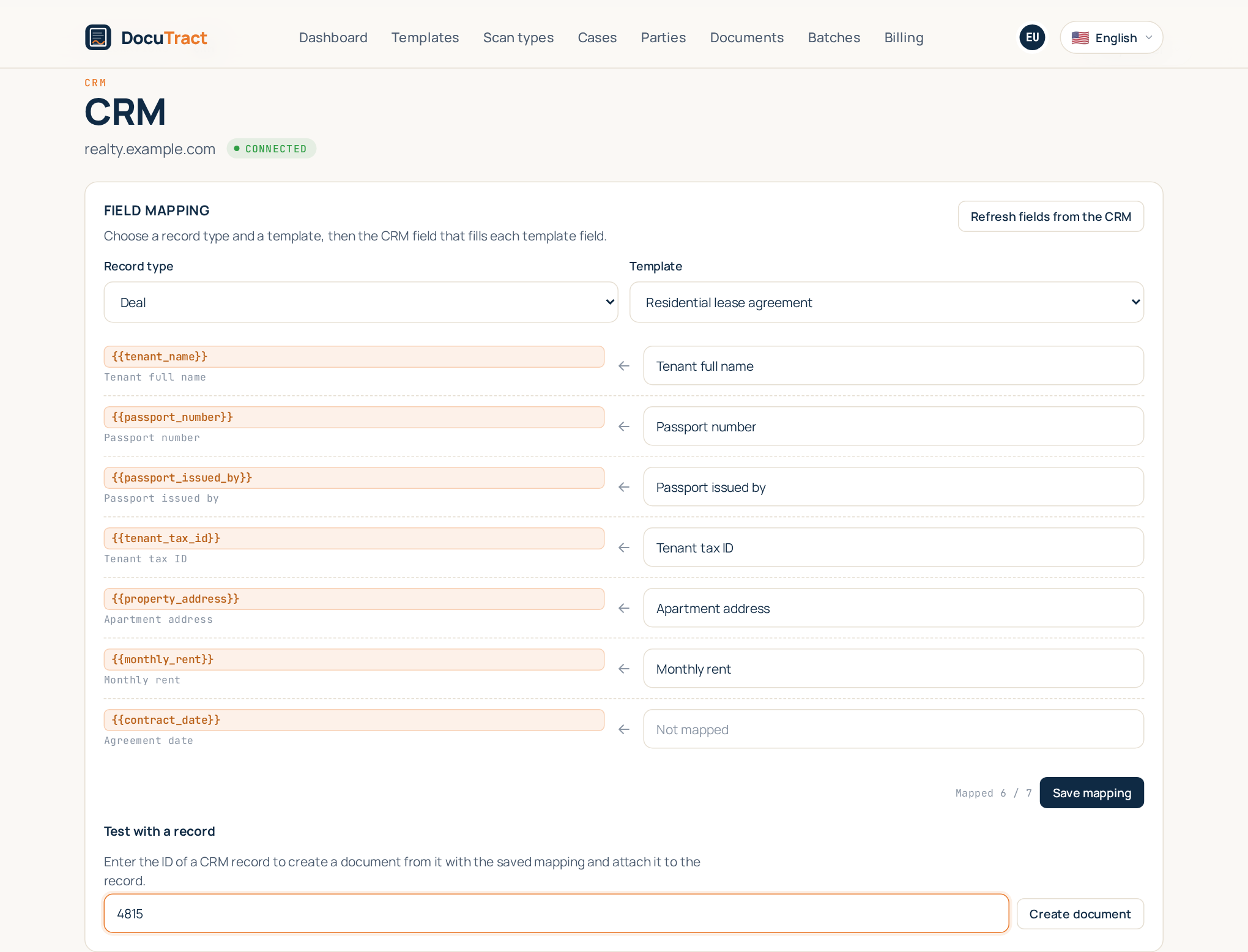
On the account's page, Field mapping links the CRM to a template:
- Choose the Record type and the Template.
- Beside each template field, pick the CRM field that fills it. The list is searchable, and the CRM's custom fields are marked. A field left Not mapped stays empty in the document; a date or reference that DocuTract fills itself needs no CRM field.
- Press Save mapping.
A mapping belongs to one template and one record type, so the same template can be filled from a deal and, separately, from a contact. If you have added fields in the CRM since, Refresh fields from the CRM fetches the list again.
Testing on a record
Under Test with a record, enter the ID of a real record from your CRM (you find it in the record's address or details) and press Create document. DocuTract reads the record, creates the document with the saved mapping and attaches it to the record. Open document opens the result, so you can check every value before you rely on the mapping.
Automation rules
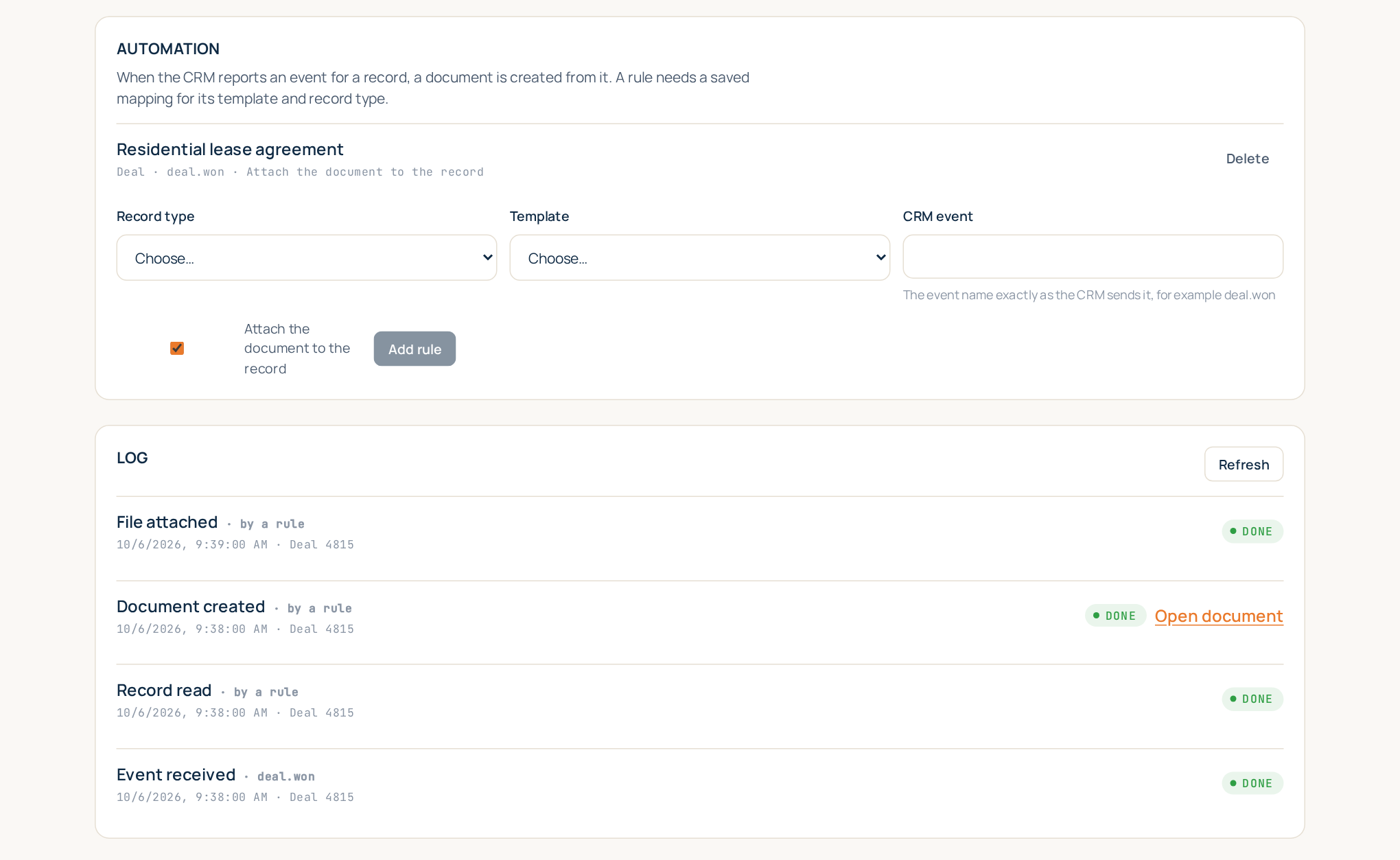
A rule creates documents without anyone pressing a button: when the CRM reports a given event for a
record of a given type, a document is created from a given template. Under Automation,
choose the Record type and the Template, type the CRM event
exactly as the CRM sends it (for example deal.won), leave Attach the document to the record ticked
if the file should go back to the record, and press Add rule.
A rule works only once a mapping for its template and record type is saved. Some CRMs send no events; for them the section says so and rules are not available.
The log
Log lists everything the connection has done: an event received, a record read, a document created, a file attached. Each line says whether it was started by hand, from inside the CRM or by a rule, when, for which record and how it ended. A failed step says why in plain words, for example that the CRM has no record with that ID; when the CRM is merely busy, we try again by ourselves. Refresh reloads the list.
Disconnecting
Disconnect beside an account asks for confirmation, and then:
- our access in the CRM is withdrawn and the access keys are deleted at once;
- the field mappings, automation rules and cached field lists are deleted within 10 days; the date is shown beside the account;
- documents already created stay where they are, in your workspace and attached in the CRM.
The same happens when you remove our app inside the CRM. If the CRM stops accepting the connection, the account is marked Needs reconnecting, and Connect again restores it.
What data goes where
- When a document is created, we read only the record you chose (or the one a rule reacted to), and only the fields you mapped.
- For the mapping screen, we read the list of the CRM's fields: their names and types, never the values in your records. The list is kept in a cache for a few hours.
- We send back the finished document (or a link to it) and the minimum the exchange needs, such as the record's ID and the status.
- We keep no copy of your CRM records. The values read become part of the document, which is kept like your other documents.
- Access tokens and API keys are stored encrypted, and only until you disconnect.
- The CRM is a provider you chose and contract with yourself; it is not our sub-processor. The details are in the privacy policy.