Create a template from a finished document
Upload a real, already filled document; the AI proposes which values change between documents, and you decide which become fields.
When to use it
You have a contract, an act or an order that was already filled in for a real deal, with real names and amounts, and no placeholders. Marking every changing value by hand is slow and easy to get wrong. The wizard does the first pass for you: it reads the document and proposes which values should become fields.
It only proposes. Nothing becomes part of the template until you confirm it.
Starting the wizard
Open Templates and choose Create from a document. The wizard has three steps.
1. Scan copies
Choose which scans will fill this template, from the catalogue or by creating a new type from a sample page. These become the template's slots, the documents the filler uploads.
The system types in the catalogue follow the language of your interface: in English you see English documents, in Ukrainian the Ukrainian ones. Your own types are always shown, and a system type one of your templates already uses stays available after you switch language.
2. Fields
For each scan copy, tick the fields the template uses: the full name and tax number from a passport, the cadastral number from an extract, and so on.
3. Example
Upload the finished document (.docx, up to 10 MB). The analysis usually takes up to a minute. If the document is very long, only its beginning is analysed and the wizard tells you so; review the draft carefully in that case.
If the file already contains {{…}} placeholders, the wizard skips the proposals and simply asks
where each placeholder gets its value.
Reviewing the proposals
The wizard shows Review the proposed placeholders: every value it thinks changes from document to document, the text it found, a suggested name and a suggested source.
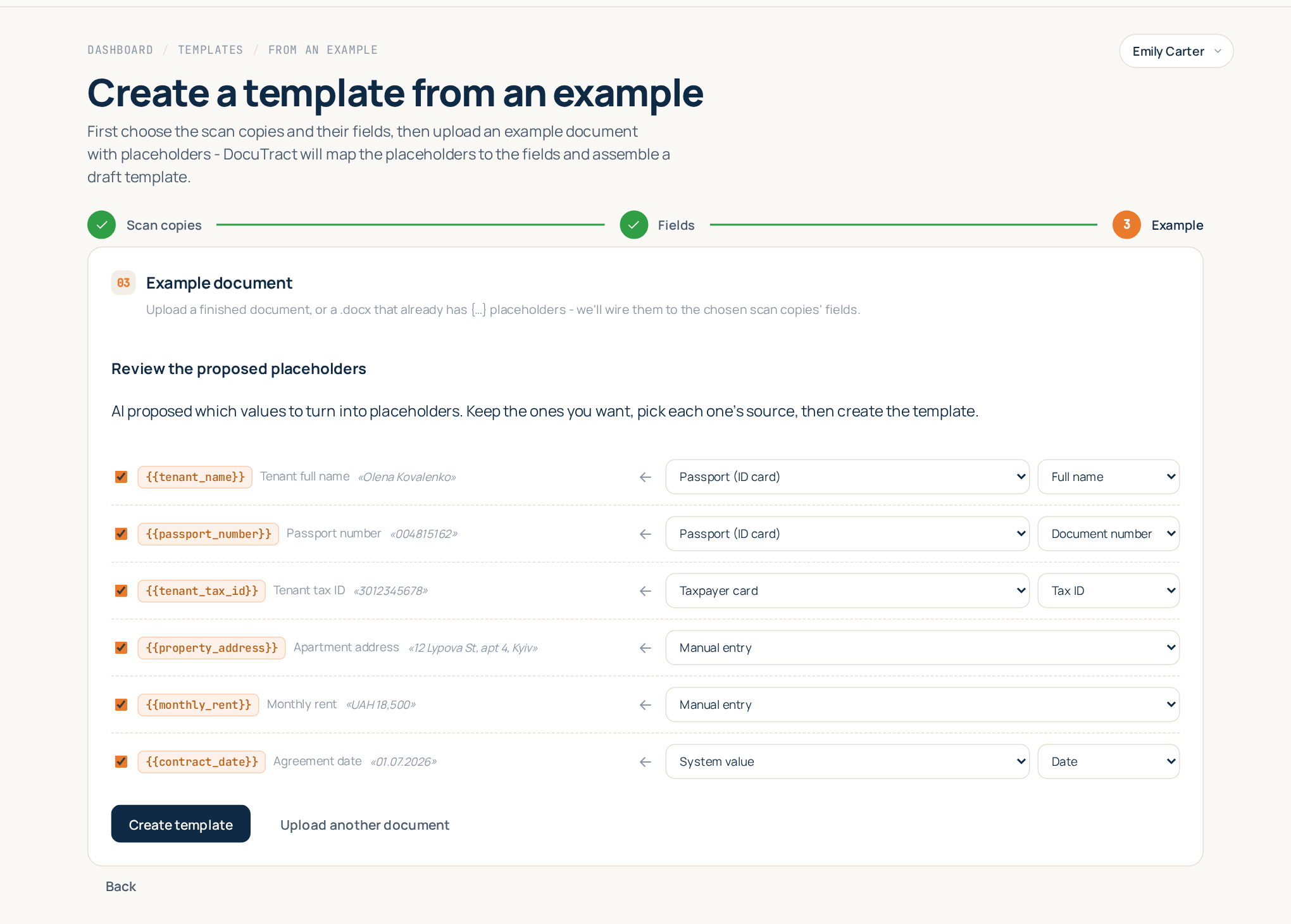
For each proposal you can:
- Keep it or drop it. Untick Keep this placeholder and the text stays in the template as fixed wording. The company's own name in the header, for example, usually should not change.
- Change its source. A field of one of your scan copies, a system value (a date, a document number) or manual entry. The AI suggests one; you have the final word.
When it looks right, press Create template. The wizard rewrites the document: the kept values become placeholders, the rest stays as it was, and the template opens in the editor where you can adjust anything, exactly as with a template made from a blank.
Item tables are recognised too
Acts, invoices and dispatch notes have a table of services or goods, and the number of lines differs every time. The wizard recognises such a table: instead of making a field out of every cell of every line, it turns the example lines into one repeatable row with a field per column (name, quantity, price, amount) and numbers the rows automatically. When you fill the document you add as many rows as you need.
How these rows work, both for filling and for writing your own blanks, is in Tables with a variable number of rows.
Good to know
- You decide. The AI can miss a value or suggest one that should stay fixed. Read the proposals and the resulting template before you use it for real documents.
- The example's values do not leak. Values you turn into placeholders are removed from the template; values you drop stay as written, so drop only what really is fixed text.
- What it costs. Each uploaded example is analysed once by the AI. Creating templates does not use your monthly document quota; only generated documents do (see Billing and plans).
- Nothing found? If the AI finds no values to turn into placeholders, you can still create the template and add placeholders to the blank later.