Create a template from a blank
Mark the changing text in a Word document with {{placeholders}}, upload it and tell DocuTract where each field gets its value.
What a blank is
A blank is an ordinary Word document (.docx) in which every piece of text that changes from one document to the next is replaced with a placeholder in double curly braces:
Kyiv, {{contract_date}}

{{landlord_full_name}} (the Landlord) and {{tenant_full_name}} (the Tenant)
have agreed as follows…
Formatting, numbering, headers and tables stay exactly as you made them in Word. DocuTract only swaps the placeholders for values.
Naming placeholders
- Use lowercase Latin letters, digits and underscores:
{{tenant_full_name}},{{rent_amount}}. - Make the name say what goes there.
{{field1}}works, but you will not remember what it means in a month. - The same name used twice gets the same value both times. That is handy for a name that appears in the preamble and again in the signature block.
- Type each placeholder in one go. If Word underlines or autocorrects part of it, retype it in one piece rather than editing the middle.
- For a table whose number of rows varies, use the dotted form
{{items.name}}. See Tables with a variable number of rows.
Creating the template
Open Templates and press Create template.
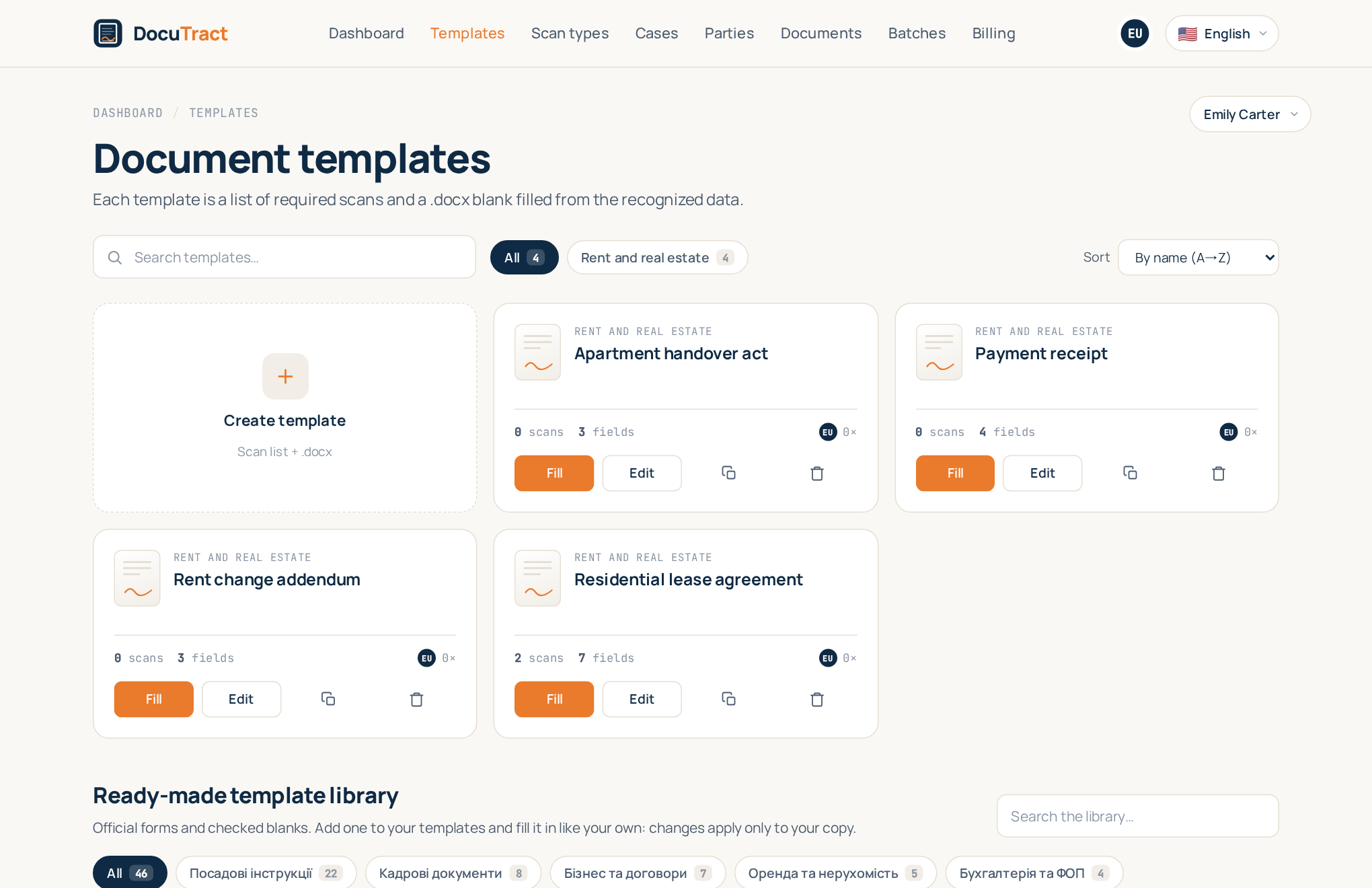
The editor has a few sections, top to bottom.
1. Basics
Give the template a Template name, a Category and, if you like, a Description. They help you find the template later; they do not affect the document. Press Create template: the blank and the fields become available once the template exists.
2. Required scans
These are the documents the person filling the template will upload: a passport, a title extract, a power of attorney. Each one is a slot. Press Add a required scan, pick a type from the catalogue or Create a new type by uploading a sample page so the AI can discover its fields. Mark each slot as Required or optional, and put them in the order people usually have them.
The system types in the catalogue follow the language of your interface: in English you see English documents, in Ukrainian the Ukrainian ones. Your own types are always shown, and a system type one of your templates already uses stays available after you switch language.
3. The .docx blank
Drag your .docx onto the upload area (Word document up to 10 MB). DocuTract finds every placeholder and lists them. You can download the blank or replace it later; replacing it detects the placeholders again.
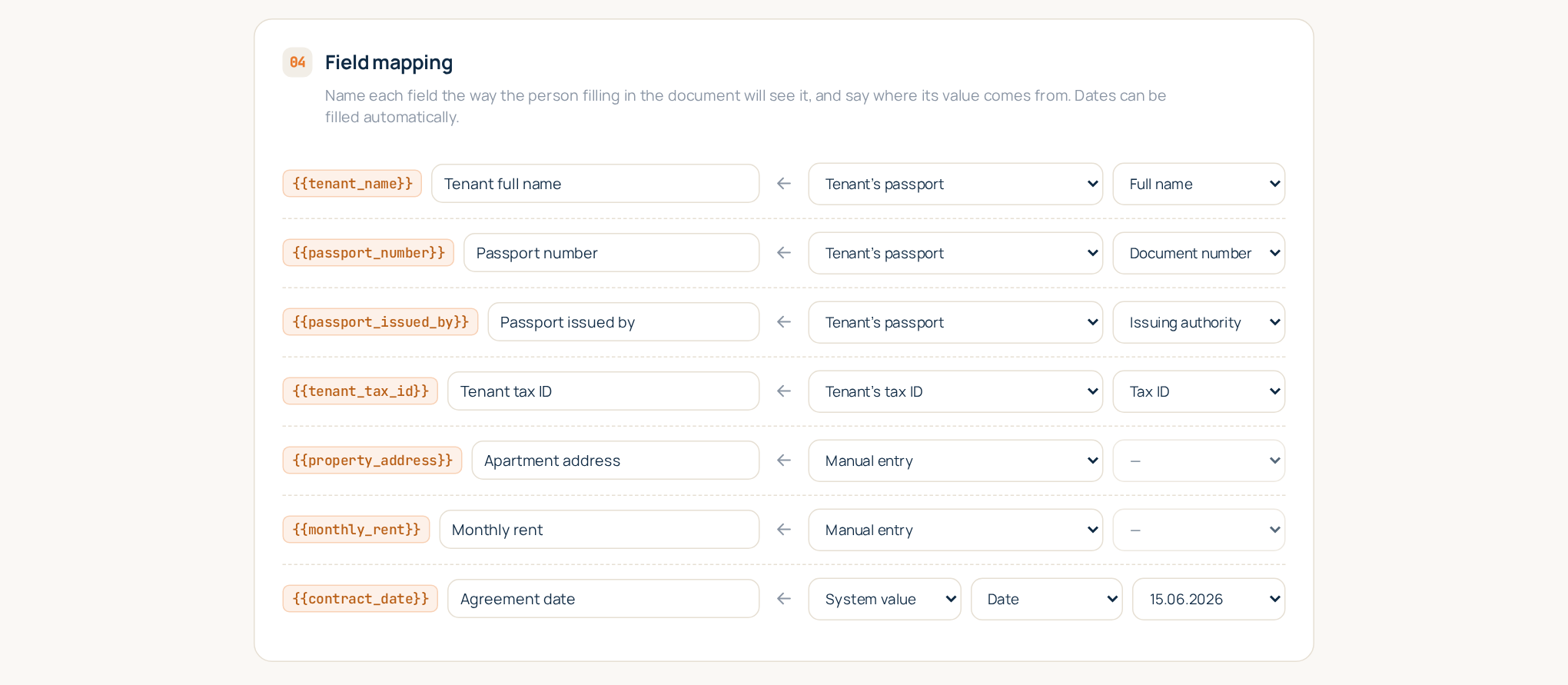
4. Field mapping
For every placeholder you choose a Source:
- A scan field. Pick a slot and the field to read from it, for example the passport's full name. The value is recognised from the uploaded scan, and its page is remembered.
- System value. Filled automatically: Date, Time, Date and time, Document
number or Current user. Dates and times have a Format, such as
15.06.2026or15 June 2026. - Manual entry. The person filling the document types it in. Use this for things no scan contains: the rent amount, the term, a special clause.
Next to each placeholder is a Field name: what the field is called for the person filling the
document in, and on the finished document's page («Employee full name» rather than
employee_full_name). Left empty, the placeholder itself is shown.
Press Save template. The template is ready to fill: find it in the catalogue and press Fill.
Tips
- Start small. Map the fields that come from scans first; anything else can be a manual entry and changed later.
- One slot per document. If the template needs two passports (landlord and tenant), add two slots so each value knows which passport it came from.
- Changing the template is safe. A new blank or a changed mapping creates a new template version; documents you already made keep the version they were built with. See Conditional blocks and template versions.
- Do not have a blank yet? Upload a finished document instead and let the AI propose the fields: Create a template from a finished document.