Collecting documents from the client
Send the client a private link to upload their documents, with no account, or forward their email; the files land in your document already recognised.
Ask the client instead of chasing scans
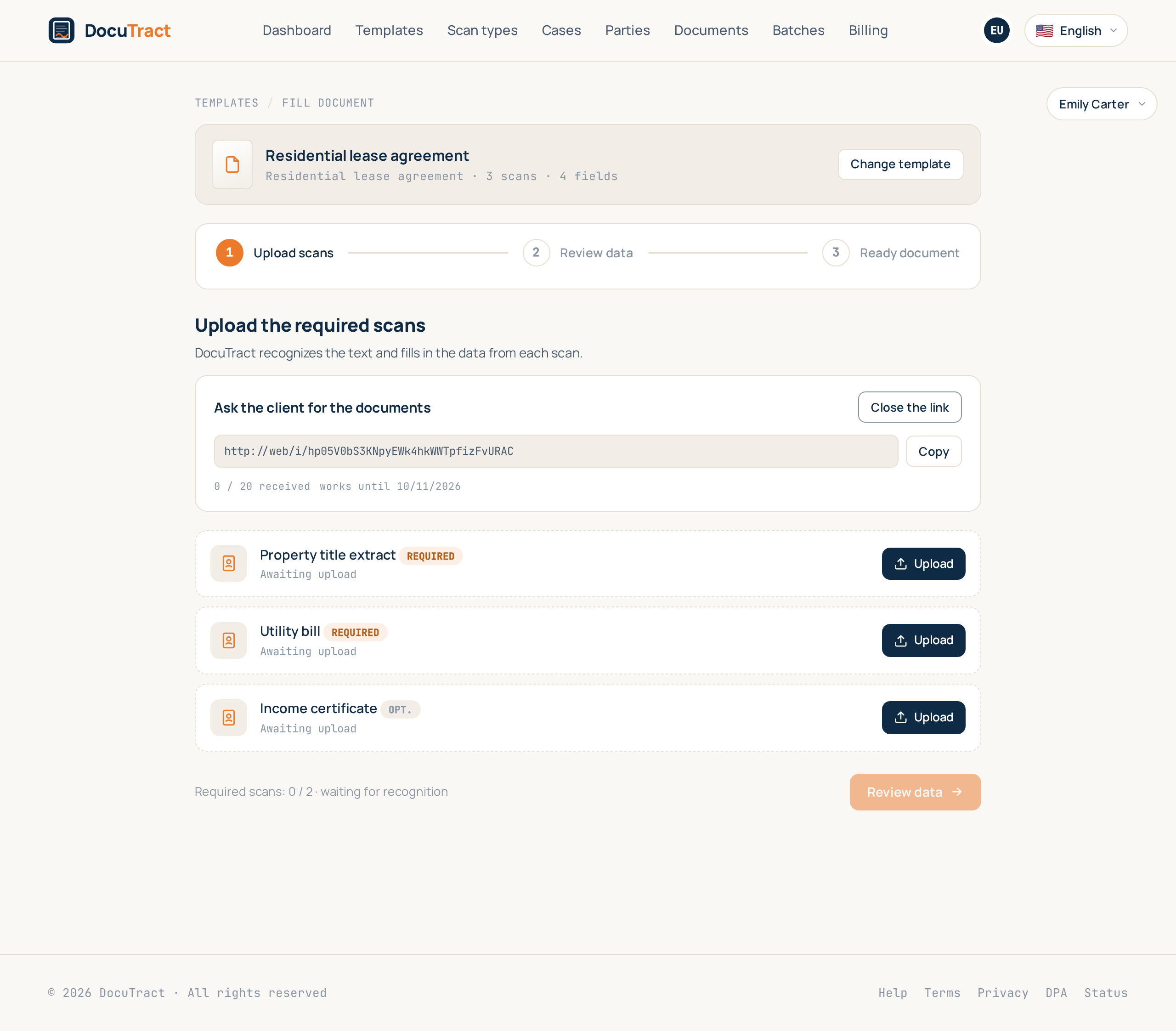
You do not have to gather the scans yourself. Open the document you are preparing and use Ask the client for the documents: press Create a link and DocuTract creates a private link you can send by mail, chat or messenger. Copy puts it on your clipboard.
What the client sees
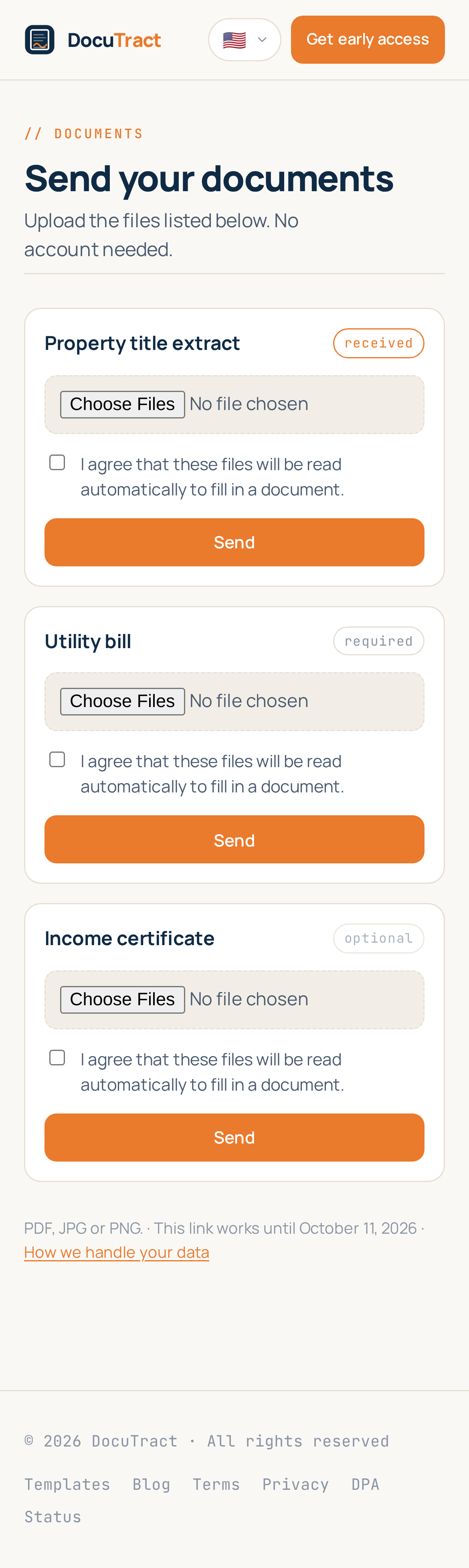
A single page in the language you were working in, with no account and no sign-up: the list of documents to send, one upload control per item, and a line saying which formats are accepted (PDF, JPG or PNG). What has already arrived is marked as received, so the client does not send the same file twice.
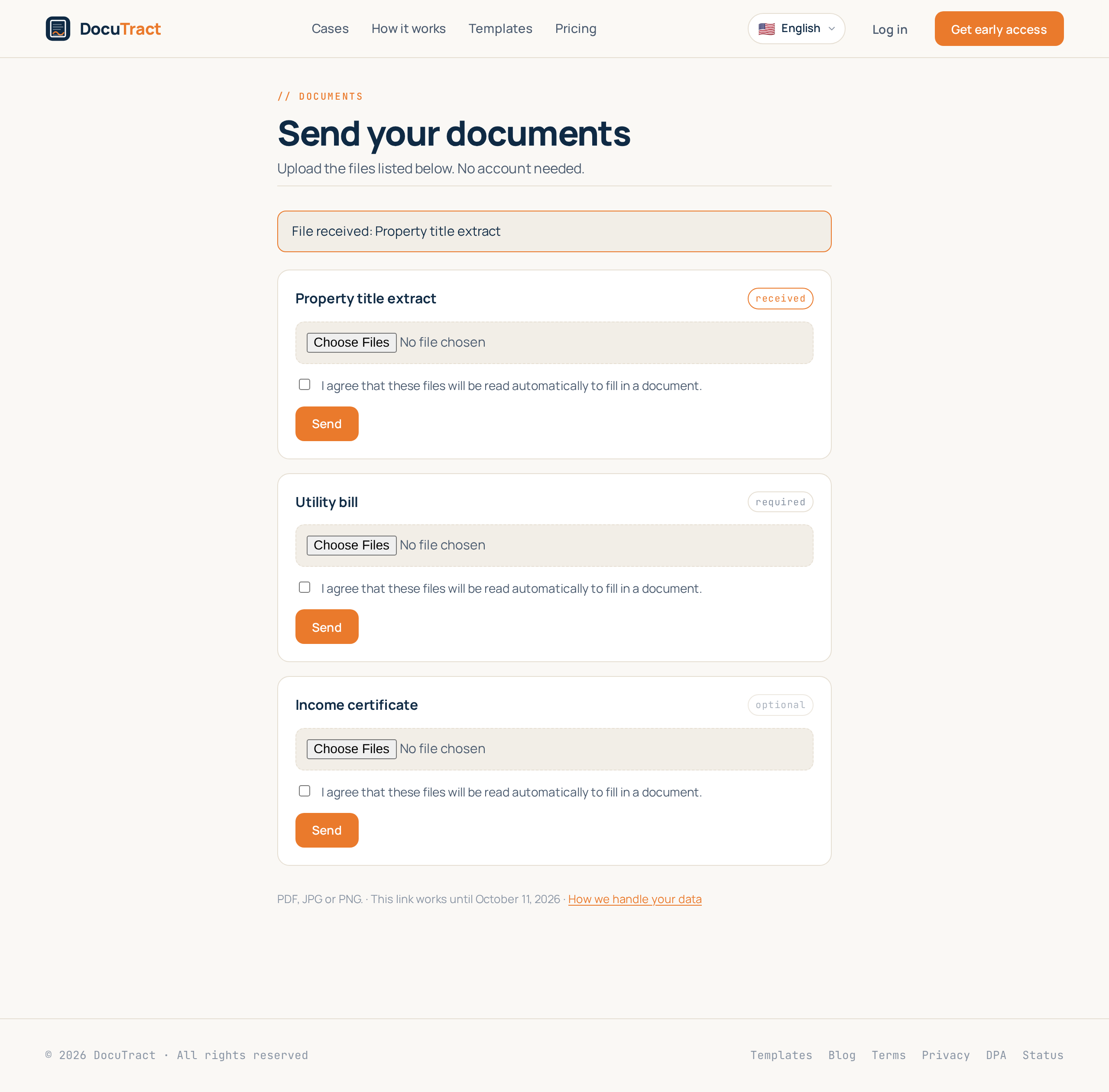
Before sending, the client agrees that the files will be read automatically to fill in a document. The page shows nothing else about you, your workspace or the document itself. It works just as well on a phone, where the client can take a photo of a document directly.
What happens to the files
An uploaded file becomes a scan of your document straight away and goes through the usual recognition, so by the time you open the document the values are already extracted. Each scan is labelled with where it came from, so you can tell at a glance what the client sent and what you added yourself.
Keeping the link under control
Every link carries three limits, and all three are checked on every visit:
- A lifetime. Seven days by default, at most thirty. After that the link is dead.
- An upload budget. Twenty files by default. Once they have arrived the link stops accepting more.
- Your revocation. Close the link shuts it immediately, and anyone opening it afterwards is told it no longer works.
How many links you can keep open at once depends on your plan. If you have reached the limit, close one you no longer need.
Receiving documents by mail
If your workspace has an intake address, the link also has one: forward the client's mail to it and the attachments land in the document, filling the empty slots in order. Files we cannot read (a signature image, an office document) are left out and listed in the link's history, so you can see what arrived and ask for what is missing.
Next steps
Once the files are in, continue as usual: check the recognised data and generate the document (see Fill a document from scans). If one set of documents feeds several documents, group them in a case so the scans are read once.